The Calm before the Storm
It all started on a Sunday afternoon when I, for God knows why, decided to free up space from my Windows C drive.
A bit of needed context first: I primarily use Windows 10 as my host OS, and I use a Linux VM for development. Additionally, I had a WSL Ubuntu instance on my host, for quick tasks and whatnot. If you're not familiar with WSL, that's Windows Subsystem for Linux. It's a system component that allows you to have a Linux VM alongside your host OS, but without having to switch (from boot menu, or to a VM). It's as convenient as double clicking an icon and, voila! A Linux machine has spawned into your Windows device.
WSL is nothing new, it's been around for quite some time. In fact, it's been around long enough that it has undergone a massive do-over around the release of Win11. For a good few years, WSL was running on what is now known as WSL1, the older version that frankly did the job but lacked in a few areas, for example you couldn't do anything GUI-related with it, or that is heavily dependent on a Linux kernel - because it did not really have one, it used a translation layer to convert Linux system calls into Windows kernel calls, effectively simulating a Linux environment.
WSL2, on the other hand, has a complete Linux kernel. So, it's essentially a lightweight VM you can run on your Windows machine with no problems. Unless you already run VMs.
So, back to how I wanted to free up space on my C drive. Essentially the problem is, my Ubuntu WSL machine has been living in my C drive taking up a good amount of space. I looked around on how one can move a WSL distro from one drive to another, and found out there is a really simple way to do it:
wsl --manage Ubuntu --move NewDrive:\WSL\Ubuntu
One tiny problem: This is a WSL2 specific command. I was running WSL1.
The upgrade
It was long overdue anyway, so I decided to upgrade my WSL to version 2. Big mistake. So the first problem was, the machine initially reported an error that it couldn't upgrade due to missing virtualization dependencies, which makes no sense because I double checked the enabled features and all was good.
I decided to turn the Microsoft Virtualization Platform feature off, reboot (it's required), then turn it back on, reboot again, and sure enough, it worked. What the hell Microsoft.

Anyway, after a good 2 hours of moving the system, it was time to test it out. Thankfully, it worked (slower, but that was expected since it's a complete Linux kernel).
One thing I did notice, however, was that upgrading to WSL2 enabled the Windows hypervisor components under the hood (required for its lightweight VM). This, in turn, enforced Virtualization-Based Security (VBS).
This is bad news for two reasons: my existing non-Microsoft VMs might face performance hits, and more importantly, some video games no longer work properly because many kernel-level anti-cheat systems conflict with VBS enabled.
Windows is a pain
The fact that there is no way to actually disable VBS (Virtualization-Based Security) still makes no sense to me. Even though there are settings to disable it, they effectively do nothing at all!
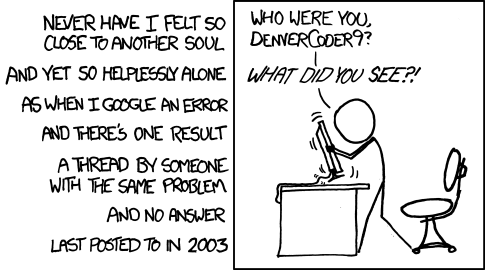
I've updated settings, policies, and even changed (and created) registry entries. Nothing worked.
The Script
I knew the workaround was to toggle the Windows hypervisor off entirely,
bcdedit /set hypervisorlaunchtype off
This essentially turns hyperV off on the next system boot, giving better VM performance and video game compatibility. But it breaks WSL2, so if you wanted it back you'd have to do:
bcdedit /set hypervisorlaunchtype auto
It works great, but manually running commands (and remembering the current state) every time I want to switch is a hassle.
So I whipped up this simple batch script to handle the toggle automatically, and check the current status:
@echo off
title HyperVisor Toggle
cls

:: --- admin check ---
net session >nul 2>&1
if %errorLevel% neq 0 (
    echo ========================================================
    echo  ERROR: PERMISSION DENIED
    echo ========================================================
    echo  You must Right-Click this file and choose
    echo  "Run as Administrator" for it to work.
    echo.
    pause
    exit
)

:: --- check current status ---
for /f "tokens=2" %%a in ('bcdedit /enum ^| findstr "hypervisorlaunchtype"') do set CURRENT_STATUS=%%a

if /i "%CURRENT_STATUS%"=="off" goto :SET_HYPERV_ON
goto :SET_HYPERV_OFF


:SET_HYPERV_ON
    echo ========================================================
    echo   CURRENT STATE: [ HYPERV OFF ]
    echo   (Hypervisor: OFF - Games OK, WSL2 Broken)
    echo ========================================================
    echo.
    set /p CHOICE="Turn HyperV ON (Enable WSL2)? (Y/N): "
    if /i "%CHOICE%" neq "Y" goto :NO_CHANGE

    :: user said Yes, proceed
    bcdedit /set hypervisorlaunchtype auto
    echo.
    echo [OK] HyperV is now ON.
    goto :FINISH


:SET_HYPERV_OFF
    echo ========================================================
    echo   CURRENT STATE: [ HYPERV ON ]
    echo   (Hypervisor: ON - WSL2 OK, Games Broken)
    echo ========================================================
    echo.
    set /p CHOICE="Turn HyperV OFF (Enable Games)? (Y/N): "
    if /i "%CHOICE%" neq "Y" goto :NO_CHANGE

    :: User said Yes, proceed
    bcdedit /set hypervisorlaunchtype off
    echo.
    echo [OK] HyperV is now OFF.
    goto :FINISH


:NO_CHANGE
    echo.
    echo No changes made. Exiting...
    timeout /t 3 >nul
    exit


:FINISH
    echo.
    echo ========================================================
    echo   DONE. A RESTART IS REQUIRED.
    echo ========================================================
    set /p REBOOT="Restart computer now? (Y/N): "
    if /i "%REBOOT%"=="Y" (
        shutdown /r /t 0
    ) else (
        echo Please restart manually later.
        pause
    )
You can have this script living anywhere as a .bat file and run it whenever you want to toggle HyperV or just check if it's on or off.
Wrapping Up
In the end, this little toggle script has been doing the job for me without having to resort to VBS headaches. Windows virtualization features are definitely powerful, but the conflicts (especially around security like VBS and anti-cheat) can be frustrating. This workaround isn't perfect; it requires a reboot each time—but it's simple, reliable, and doesn't mess with deeper system settings.
If you're in the same boat, give the script a try. Save it as HyperV-Toggle.bat, right-click > Run as Administrator, and toggle away.
Have a better solution, improvements to the script, or your own horror stories with Hyper-V/WSL2? Drop a comment below, I'd love to hear them!